Guide · Mermaid in Microsoft Word
How to Insert Mermaid Diagrams in Word
Microsoft Word has no built-in Mermaid support, so pasting diagram code into a document just shows text. The reliable workflow is to render the Mermaid code in your browser, export it as a PNG or SVG image, and insert that image into Word. The whole round trip takes under a minute and produces print-ready output.
No signup · No watermark · Local browser rendering · Print-ready 2x and 4x output
Does Word render Mermaid natively?
No version of Microsoft Word renders Mermaid syntax on its own. Converting the diagram to an image is the reliable approach: it works in every Word version, with nothing to install in Office and no account to create. Word 2016 and Microsoft 365 also accept SVG images, which scale perfectly for print; older Word versions should use a high-resolution PNG instead.
Insert a Mermaid diagram into a Word document
- 1
Paste your Mermaid code
Drop your diagram code into the converter below. It renders locally in your browser — nothing is uploaded, which matters for internal specs and client documents.
- 2
Choose a document-friendly style
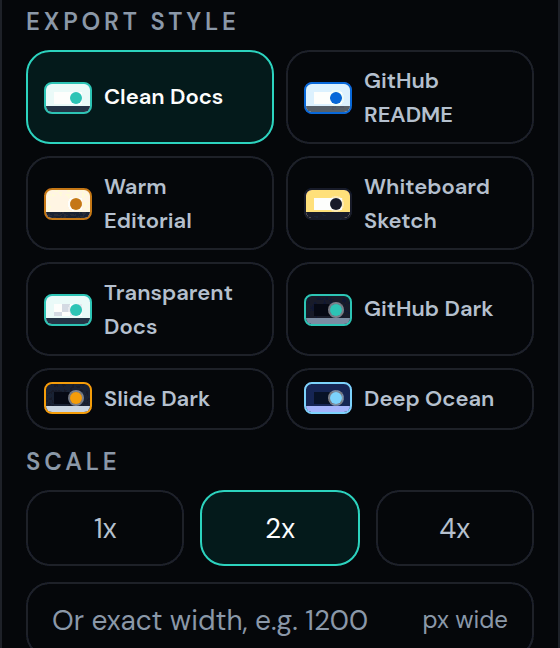
Clean Docs on a white background looks native inside reports and specs. Keep the background white so the diagram blends into the page like any other figure.
- 3
Export PNG at 2x — or SVG for Microsoft 365
A 2x PNG stays sharp in print and PDF exports of your document. On Word 2016 or Microsoft 365, SVG is even better: it is vector, so it never pixelates at any print size.
- 4
Insert the image in Word
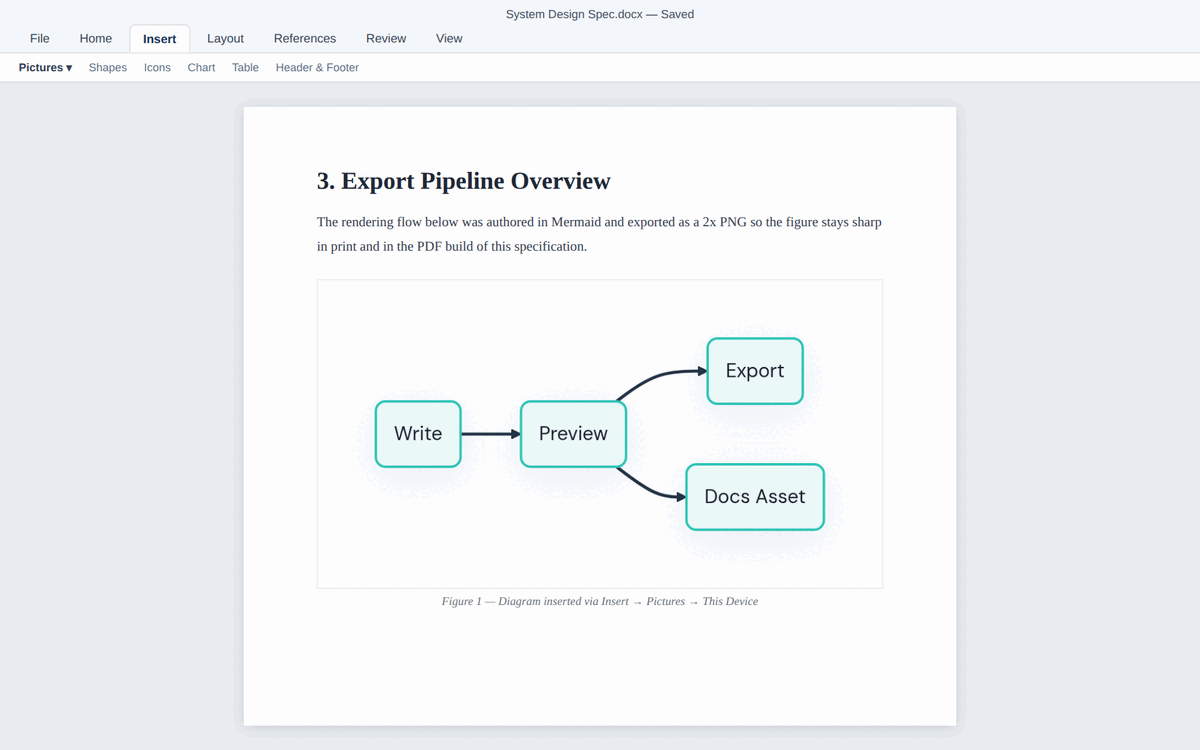
Use Insert → Pictures → This Device and select the exported file, or drag it straight into the document. Use Word's layout options to wrap text or center the figure.
Export your diagram here
Paste your Mermaid code below, pick a style, and download the image. Everything renders locally in your browser — no signup, no watermark.
Export controls activate after your diagram renders locally.
Which format works best in Word?
Works in every Word version and email round trip. Export at 2x so labels stay sharp when the document is printed or saved as PDF.
Word 2016 and Microsoft 365 insert SVG natively. Vector output scales to any size without pixelation, ideal for A4 reports and posters.
JPG compression softens thin lines and small text. Only use it when a legacy workflow strictly requires JPG attachments.
FAQ
Questions about this workflow
Can Microsoft Word render Mermaid code directly?+
No. Word has no Mermaid engine in any version, including Microsoft 365. Convert the diagram to a PNG or SVG image and insert it like any other figure.
How do I convert a Markdown file with Mermaid blocks to Word?+
Pandoc and most Markdown-to-DOCX converters do not render Mermaid code blocks on their own, so the diagrams come through as plain code. Export each diagram to PNG or SVG first, reference the images in your Markdown, then convert — or paste the exported images into the finished document.
Can I edit a Mermaid diagram after inserting it in Word?+
Word treats it as a picture, so edit the Mermaid code rather than the image. Keep the code, or copy this editor's Share link into the image alt text or a comment — the link carries the whole diagram, so you can reopen it, change it, export again and use Change Picture in Word to swap it in place.
Does SVG work in Word for Mac?+
Yes, in Word for Microsoft 365 for Mac and Word 2019 for Mac or later, which insert SVG files as vector graphics. If a colleague uses an older version, send a 2x PNG instead.
PNG or SVG — which should I insert into Word?+
Use SVG if you are on Word 2016 or Microsoft 365 and the document will be printed: vector images never pixelate. Use a 2x PNG for maximum compatibility with older versions and email workflows.
Why does my diagram look blurry when I print the document?+
It was probably exported at 1x screen resolution. Re-export at 2x or 4x scale, or switch to SVG. Higher pixel density is what keeps labels crisp on paper and in PDF exports.
Is my diagram uploaded anywhere during conversion?+
No. This converter renders Mermaid locally in your browser, so diagram code for confidential specs and internal documents never leaves your machine.
Do I need a Word add-in for Mermaid diagrams?+
No. Add-ins exist, including one from Mermaid Chart Inc., but they have to be installed in Office, which company-managed computers may not allow, and that one is built around Mermaid Chart projects. For a figure in a report you need neither: paste your code above, export a 2x PNG or SVG, and insert it. It works in any Word version and the code never leaves your browser.
How do I convert Mermaid to Word or a DOCX file?+
There is no direct Mermaid-to-DOCX export anywhere — the standard workflow is this page: paste your code, export a 2x PNG (or SVG), then use Insert > Pictures in Word. For a whole Markdown document with several diagrams, export each one first, reference the images in your Markdown, and convert with Pandoc.