Guide · Mermaid in Notion
How to Add Mermaid Diagrams to Notion
Notion can render Mermaid natively inside code blocks, so start there for quick internal notes. When you need custom themes, consistent styling in shared pages and PDF exports, or a diagram image you can reuse outside Notion, export the diagram as a high-resolution PNG and insert it as an image instead.
No signup · No watermark · Local browser rendering · Works with Notion light and dark mode
Does Notion render Mermaid natively?
Notion supports Mermaid inside code blocks: type /code, set the language to Mermaid, and switch the block to Preview or Split view. The trade-off is control. Notion renders diagrams with its own default styling, so you cannot apply custom themes, brand colors, or transparent backgrounds, and complex diagrams can look cramped inside narrow page columns. An exported image gives you full control over theme, scale, and layout, and it looks identical for every viewer.
Insert a Mermaid diagram image into Notion
- 1
Paste your Mermaid code
Drop your flowchart, sequence, or ER diagram code into the converter below. The diagram renders locally in your browser and updates as you edit.
- 2
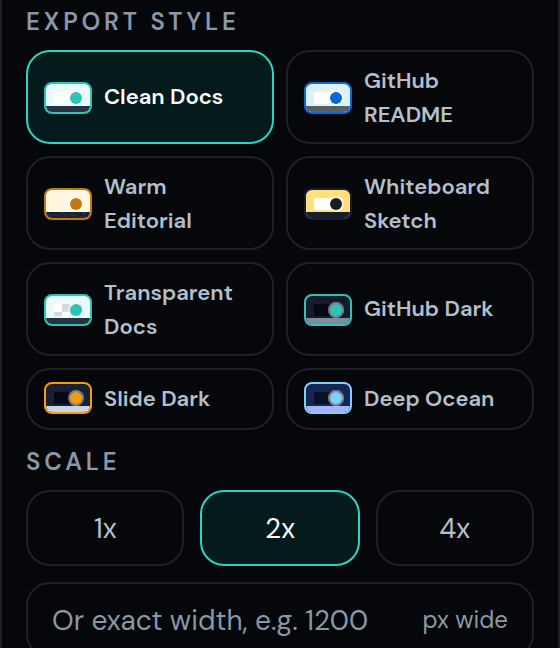
Pick a style that fits your page
Clean Docs fits most Notion pages. Use a dark preset for dark-mode-heavy workspaces, or Whiteboard Sketch for planning docs and wikis.
- 3
Export a 2x PNG
Download a PNG at 2x scale so labels stay sharp on retina displays. Use a white background for a document look that reads clearly in both Notion themes.
- 4
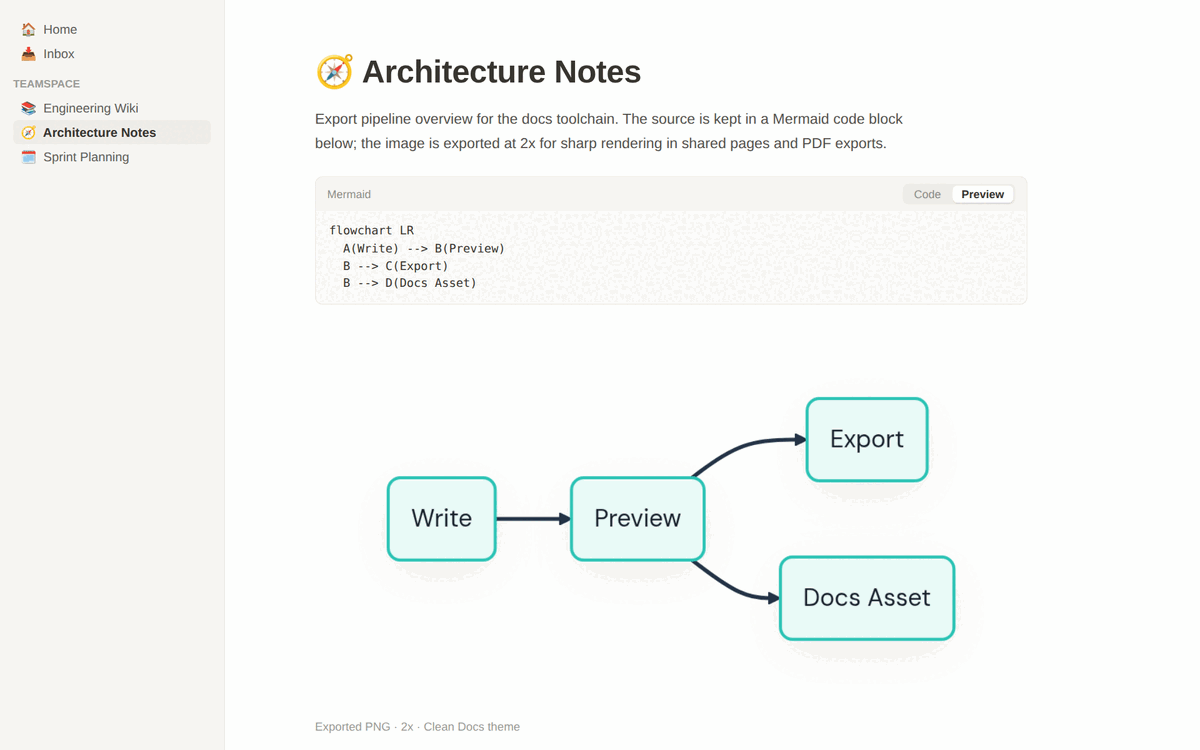
Drag the image into Notion
Drag the PNG onto your Notion page, or type /image and upload it. Resize by dragging the image handles — the 2x export keeps text crisp at any width.
Export your diagram here
Paste your Mermaid code below, pick a style, and download the image. Everything renders locally in your browser — no signup, no watermark.
Export controls activate after your diagram renders locally.
Which format works best in Notion?
Notion handles PNG uploads everywhere: pages, galleries, and toggles. Export at 2x so diagrams stay sharp when readers zoom or open the image.
Best for fast internal notes that teammates will edit. Keep the Mermaid source in a toggle next to your exported image so both stay in sync.
Notion treats uploaded SVG files as attachments rather than inline images on many plans, so PNG is the dependable choice for inline diagrams.
FAQ
Questions about this workflow
Can Notion render Mermaid diagrams without any tools?+
Yes. Create a code block with /code, choose Mermaid as the language, and switch the block to Preview or Split view. Notion renders the diagram with its default styling.
Why insert an image instead of using Notion's Mermaid block?+
Images give you theme and brand control, transparent or white backgrounds, higher-resolution rendering, and an identical appearance in shared pages, PDF exports, and screenshots. Notion's native rendering cannot be styled.
Will the exported diagram look right in Notion dark mode?+
A white-background PNG stays readable in both Notion themes because the image carries its own background. If you prefer a blended look for dark pages, export with a dark preset like GitHub Dark instead.
How do I update the diagram later?+
Keep the Mermaid source in a code block or toggle near the image. When the diagram changes, paste the source back into the converter, re-export, and replace the image in Notion.